
7 Steps for a Wi-Fi 7 Home Setup in 2026
Setting up a Wi-Fi 7 home in 2026 requires moving beyond simple router swaps to a coordinated mesh strategy. We break down the exact hardware choices, like TP-Link’s latest E95 or ASUS’s ROG series, and the configuration steps needed to unlock multi-gigabit speeds throughout your home.
-
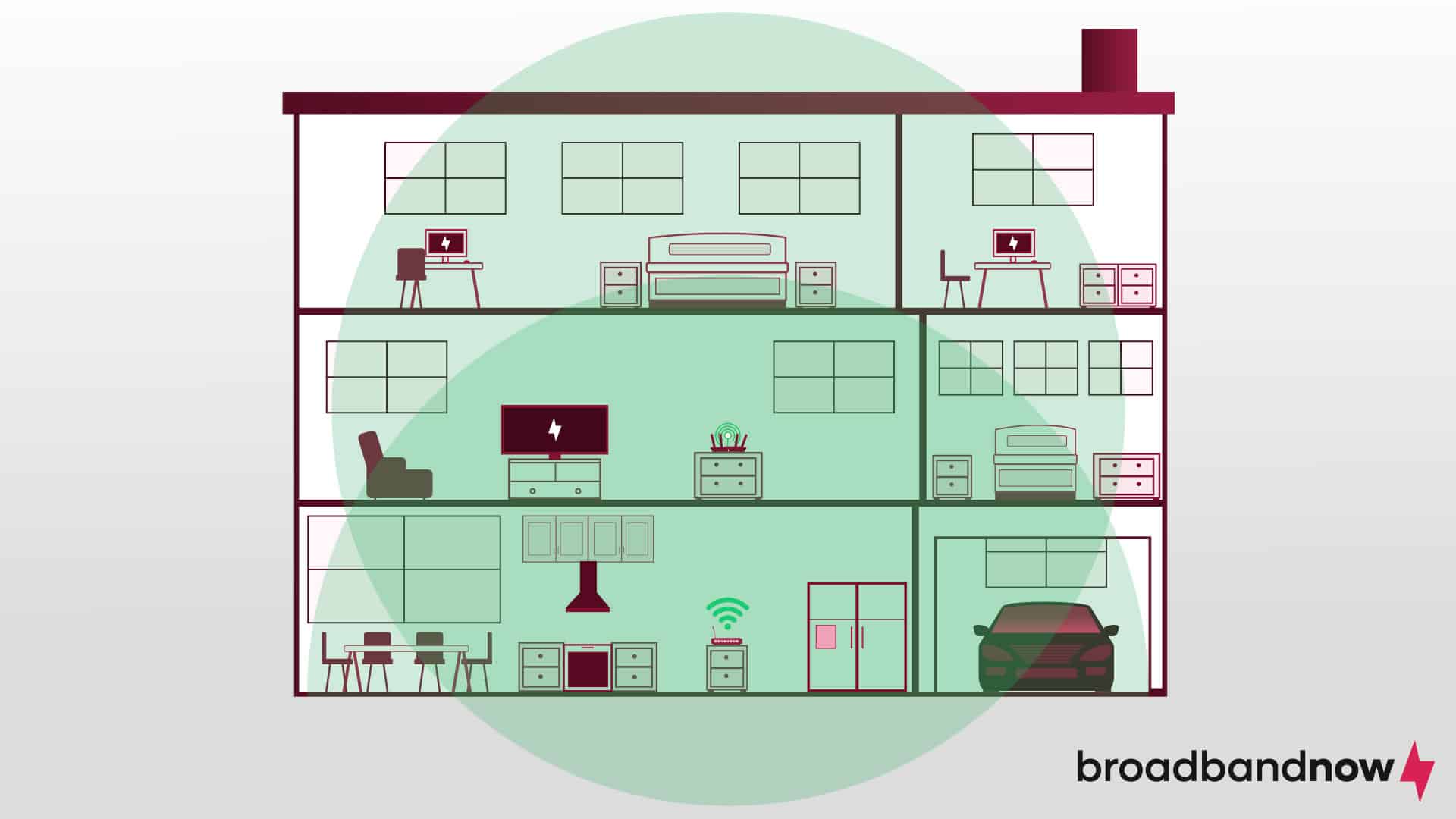
Assess current network coverage gaps
Before upgrading hardware, map your home’s dead zones using a free Wi-Fi analyzer app. Walk every room and note where signal strength drops below -70 dBm. This baseline data prevents buying unnecessary equipment. Identify thick concrete walls or metal appliances that block signals. Understanding these physical barriers ensures your new Wi-Fi 7 setup targets actual problem areas rather than guessing. -

Select a Wi-Fi 7 capable router
Choose a router supporting the 802.11be standard, prioritizing models like the TP-Link Deco BE85 or ASUS RT-BE96U. Look for tri-band support and at least 320 MHz channel width for maximum throughput. Ensure the device has sufficient LAN ports for wired backhaul connections. Avoid entry-level Wi-Fi 6 routers; the jump to Wi-Fi 7 requires dedicated hardware to handle 4K/8K streaming and low-latency gaming without bottlenecking. -

Choose compatible client devices for 2026
Wi-Fi 7 only delivers its promised speeds if your phones, laptops, and tablets also support the 802.11be standard. Check device specifications for Wi-Fi 7 certification before purchasing. Older devices will fall back to Wi-Fi 6 or 5 speeds, limiting the network’s potential. Consider upgrading smart home hubs and gaming consoles simultaneously to ensure every endpoint can leverage the new multi-link capabilities for a seamless 2026 experience. -

Plan optimal physical router placement
Position your router centrally, elevated off the floor, and away from metal objects or microwaves. Walls significantly attenuate high-frequency signals, so avoid placing the device inside cabinets or behind large TVs. Aim for a clear line of sight to high-traffic areas like living rooms and home offices. This strategic placement minimizes interference and ensures the 6 GHz band’s shorter range is effectively utilized throughout your home layout. -
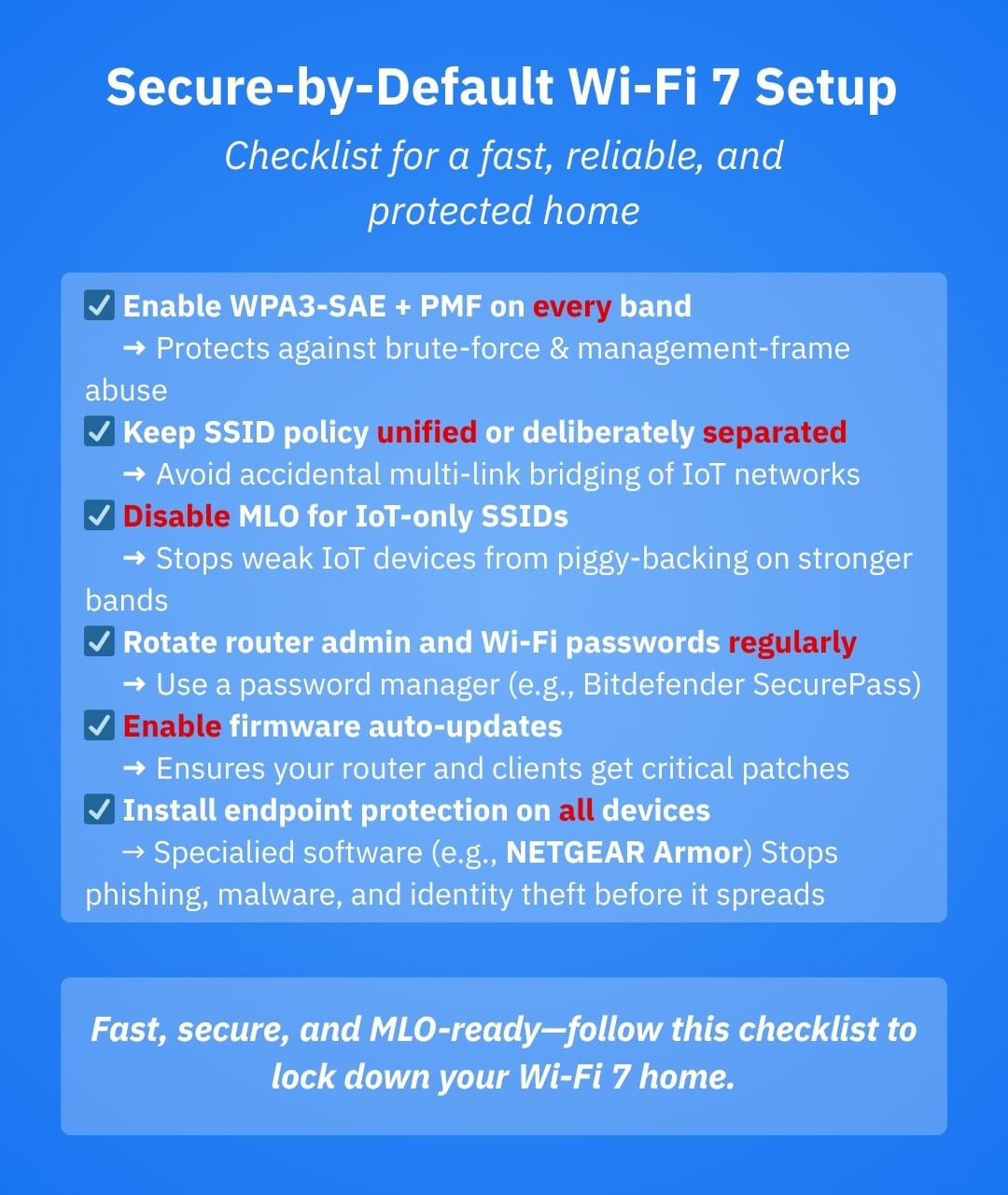
Configure multi-link operation settings
Enable Multi-Link Operation (MLO) in your router’s advanced settings to allow devices to use multiple bands simultaneously. This feature reduces latency and increases reliability by bonding 2.4 GHz, 5 GHz, and 6 GHz connections. Verify that your compatible clients support MLO to activate this benefit. Proper configuration ensures that data packets find the fastest path, preventing bufferbloat during heavy usage periods like video calls or large file transfers. -
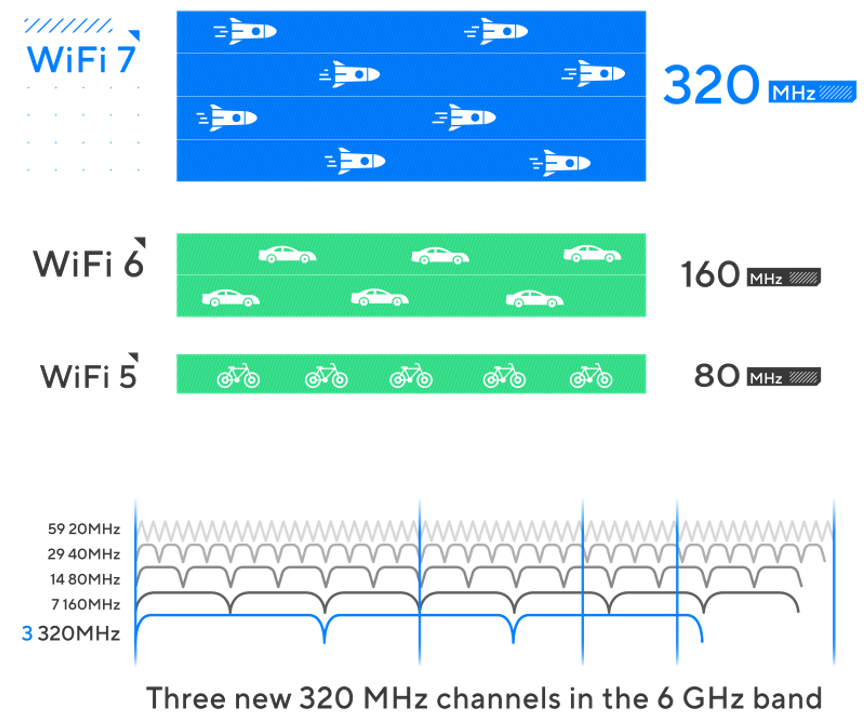
Enable 320 MHz channel bandwidth
Activate the 320 MHz channel width in your router’s 6 GHz settings to unlock Wi-Fi 7’s full potential. This wider pipe allows data to flow twice as fast as the standard 160 MHz option, significantly reducing latency for 8K streaming or large file transfers. Check your ASUS or TP-Link interface to toggle this setting, ensuring your connected devices also support the wider bandwidth to avoid fallback to slower standards. -

Test throughput with speed benchmarks
After configuration, run real-world speed tests using tools like iPerf3 or Ookla to verify your network performance. Compare results against your ISP’s advertised speeds to identify bottlenecks. Focus on latency and consistency rather than just peak numbers. This step confirms your Wi-Fi 7 home setup is delivering the promised multi-gigabit speeds and helps you fine-tune channel assignments for optimal stability.
Check your internet plan and devices
Wi-Fi 7 is only as fast as your slowest link. Before you buy a new router, you need to verify two things: your ISP’s maximum speed and whether your current devices can actually use Wi-Fi 7. If your internet plan tops out at 100 Mbps, a Wi-Fi 7 router won’t make your web browsing faster. It will only improve local network performance, like moving large files between computers or streaming 4K media from a local server.
Most homes in 2026 are still capped by older client devices rather than the router itself. Many smartphones, laptops, and smart home gadgets made before 2020 simply don’t recognize the new Wi-Fi 7 protocols, especially on the 6GHz band. If you plug a Wi-Fi 7 router into a network dominated by Wi-Fi 5 devices, the router will often downshift to accommodate them, negating the upgrade’s benefits.
Verify Your ISP Speed
Check your current plan’s download and upload speeds. If you’re on a plan under 500 Mbps, Wi-Fi 7’s theoretical speeds will likely go unused. You need a plan that can actually feed data to the router fast enough to justify the hardware cost.

Check Device Compatibility
Look at the devices you use most. Do your phones, laptops, and gaming consoles support Wi-Fi 6E or 7? If not, they’ll connect at older, slower speeds. Brands like TP-Link, ASUS, and UniFi offer routers that support Wi-Fi 7, but they won’t help if your clients are stuck on Wi-Fi 4 or 5.
Choose the right Wi-Fi 7 router
Picking a router for your Wi-Fi 7 home setup in 2026 comes down to two things: how much space you need to cover and how much you want to spend. Not every household needs the most expensive model, but older devices often struggle to recognize the newer, faster protocols.
If you are on a tight budget, the TP-Link Archer BE230 is a solid entry point. It supports the essential Wi-Fi 7 features without the premium price tag, making it a practical choice for smaller apartments or homes with fewer connected devices.
For larger homes or those who want extra performance, the ASUS RT-BE58U offers more power and range. It handles multiple high-bandwidth streams better, which helps when you have many users streaming or gaming at the same time.
If you prefer a professional-grade setup, UniFi offers scalable mesh systems that look clean and perform reliably. These are ideal if you want to manage your network through an app and expand coverage by adding more access points later.
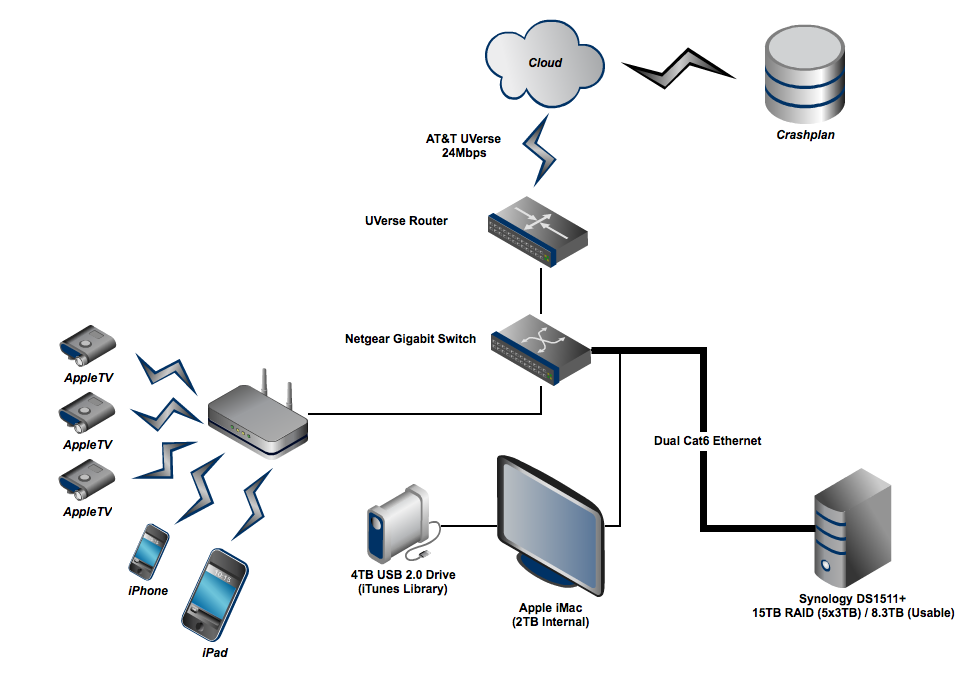
Plan your mesh network layout
7 Steps for a Wi-Fi 7 Home works best as a sequence, not a scramble through settings. Do the minimum first: confirm compatibility, connect the core hardware, update only when needed, and test the result before adding optional features. That order keeps the task understandable and makes failures easier to isolate. After each step, pause long enough for the interface to finish syncing. Many setup problems are timing problems disguised as configuration problems. If the same step fails twice, record the exact error, restart the smallest affected piece, and retry before moving deeper.
The simplest way to use this section is to keep the setup small, verify each change, and record the stable configuration before adding optional accessories.
Enable AI-driven security features
Modern Wi-Fi 7 routers have moved beyond simple firewalls. They now use machine learning to watch traffic patterns in real-time, looking for anomalies that suggest a compromised device or a malicious actor. For a Wi-Fi 7 home setup in 2026, leveraging these built-in AI tools is essential for protecting your expanding network of smart devices.\n Detecting and Isolating Threats
AI-driven security doesn't just block known bad actors; it identifies suspicious behavior from devices that appear legitimate. If a smart thermostat suddenly starts sending large amounts of data to an unknown server, the router flags this as abnormal. Instead of waiting for a manual report, the system automatically isolates the device on a separate guest network or quarantines it until you review the alert.
Platform-Specific Examples
Different manufacturers implement these features with varying levels of transparency:
- ASUS AiProtection Pro: Uses Trend Micro’s data to scan for threats. It provides detailed logs of what was blocked and can automatically drop connections from devices trying to access known malicious domains.
- TP-Link HomeShield: Offers AI-powered threat detection that learns your home’s normal usage patterns. It sends push notifications when it detects unusual activity, such as a device attempting to connect to a botnet.
- UniFi Network: While more enterprise-focused, UniFi’s AI-driven anomaly detection provides deep visibility into network traffic, allowing you to see exactly which device is communicating with whom and flagging deviations from the baseline.
Practical Setup Tips
Ensure your router’s firmware is up to date, as security signatures and AI models are updated regularly. Enable "auto-isolate" or "auto-quarantine" if your router offers it. This ensures that even if you miss a notification, the threat is contained without requiring your immediate attention. Regularly review the security logs to familiarize yourself with your network’s baseline behavior, making it easier to spot genuine anomalies.
Configure Multi-Link Operation
Multi-Link Operation (MLO) is the defining feature of Wi-Fi 7, and enabling it is the single most important configuration step for your home network. Instead of forcing devices to choose between the 2.4GHz, 5GHz, and 6GHz bands, MLO bonds them together. Think of it like adding lanes to a highway: if traffic clogs one lane, data instantly flows through the others, keeping latency low and throughput high.
To set this up, access your router’s admin panel and look for Wi-Fi 7 or MLO settings. Most modern routers, including those from TP-Link and ASUS, enable MLO by default when you turn on the 6GHz band. However, you should verify that the mode is set to "Simultaneous" or "Multi-Link" rather than "Band Steering," which still treats bands as separate entities.
Once enabled, ensure your clients—phones, laptops, and tablets—are also Wi-Fi 7 compatible. Older devices will simply ignore the MLO feature and connect to the strongest single band. With MLO active, your network dynamically shifts data across all available frequencies, providing the stable, low-latency connection needed for 4K streaming and competitive gaming in a 2026 home setup.
Optimize for Smart Home Latency
Wi-Fi 7 brings speed, but it doesn't automatically solve congestion. In a dense smart home, lag often comes from bandwidth contention rather than raw signal strength. Gaming consoles and smart switches need consistent latency, not just high throughput. Without proper traffic management, a large file download can stutter your video calls or game streams.
Most modern routers handle this through Quality of Service (QoS) settings. The goal is to create a hierarchy where critical devices get priority during peak usage. Here is how to configure your router for a responsive Wi-Fi 7 home setup in 2026.
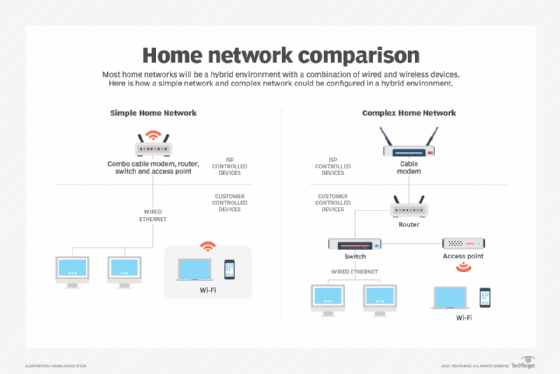
Start by listing the devices that cannot tolerate lag. This includes gaming consoles, VoIP phones, and smart security systems. Avoid prioritizing smart plugs or basic sensors, as they require minimal bandwidth and are forgiving of minor delays. Focusing only on high-priority devices prevents unnecessary configuration complexity.
Access your router settings and enable Quality of Service. Most Wi-Fi 7 routers, from brands like TP-Link or ASUS, allow you to assign priority levels to specific devices or applications. Set your gaming console and work laptop to "High" priority. This ensures that when the network is busy, these devices get the data packets they need first.
For a truly robust Wi-Fi 7 home setup, reserve a specific percentage of your bandwidth for high-priority tasks. If you have a 1 Gbps connection, allocating 20-30% to gaming and video calls prevents background updates from eating up your entire pipe. This guarantee keeps latency low even when other devices are streaming 4K video.
Many Wi-Fi 7 routers offer separate SSIDs for different frequency bands. Move your smart home hubs, cameras, and lights to the 2.4 GHz band. This keeps the 5 GHz and 6 GHz bands clear for high-performance devices like gaming consoles and VR headsets. Separating traffic reduces interference and improves stability for both groups.
Network usage changes over time. Regularly check your router's traffic dashboard to see if your QoS rules are working as intended. If you notice lag on a previously low-priority device, adjust its settings. Consistent monitoring ensures your Wi-Fi 7 home setup remains optimized for your current needs.
Test your new network speed
Now that your Wi-Fi 7 home setup is live, it is time to verify the performance. Benchmarking ensures you are actually getting the speeds promised by your new hardware, whether that is a TP-Link Archer BE230 or a high-end ASUS router.
For the most accurate results, connect a Wi-Fi 7 compatible device directly to the router via Ethernet. This eliminates wireless interference and gives you a baseline for your internet plan’s maximum throughput. If your wired speed matches your ISP’s advertised rate, your network is passing traffic correctly.
Next, test the wireless performance. Use a Wi-Fi 7 client device and run a speed test on the 6GHz band if available. This band offers the least congestion and highest potential speeds. Compare these results to your wired baseline to see the real-world overhead of wireless transmission.
Verify your Wi-Fi 7 home setup
Before you declare your Wi-Fi 7 home setup complete, run through this final checklist to ensure every component is communicating correctly. The goal is to confirm that your router, access points, and client devices are actually leveraging the new protocol rather than falling back to older standards.
- Check MLO connectivity: Ensure your devices are connecting on the 6GHz band. If you are using a mesh system like TP-Link’s Archer series, verify that the nodes are backhauling via Wi-Fi 7 to maintain low latency.
- Validate ISP speed: Run a wired speed test at the router’s LAN port. If your internet plan is capped below 1 Gbps, your Wi-Fi 7 router will not deliver higher speeds; it will only improve latency and multi-device handling.
- Test client compatibility: Confirm that your primary devices (PCs, phones, consoles) show a Wi-Fi 7 connection in their network settings. Older devices will ignore the 6GHz band and connect on 5GHz, which is normal but doesn’t utilize the full upgrade.
- Verify UniFi or AP status: If you installed a UniFi U7 Lite or similar access point, check the controller dashboard to ensure it is reporting optimal channel usage and has no radio errors.
If all points check out, your network is ready to handle the demands of 2026.
Common wi-fi 7: what to check next
Many users ask if upgrading to Wi-Fi 7 makes sense for their specific home setup in 2026. The answer often depends on your current devices and internet plan rather than just the router itself.
Here are the most frequent questions about compatibility and performance.
No comments yet. Be the first to share your thoughts!